
Designhint AI tool

Image to Image AI

Describe what to change, and keep the parts you already like. Make a directed edit without starting from a blank canvas.

Quick edits

Generating uses the credits shown above. If you log in first, your draft will be restored without starting automatically.

Change Background

Replace the background with a rich muted terracotta studio backdrop

Before editBefore
After editAfter

Why use Image to Image AI

Keep what works. Change what doesn’t.

Start with an image that already has a point of view. Describe the next decision in plain language, then use the result to decide what to refine next.

CompositionSubjectLighting
Changed studio background example

Directed, not destructive

Natural-language editing helps you hold onto the useful parts while making one visible change at a time.

Check the before and after

The result area keeps the reference and output together, so you can judge drift before starting another iteration.

Transform an image in three steps

A small loop for deliberate edits.

01

Upload

Start with one JPG, PNG, or WebP reference image.

02

Describe

Say what should change and choose what should stay.

03

Generate

Review the settings, then send one 1K edit through GPT Image 2.

Built for practical visual work

One image, four useful directions.

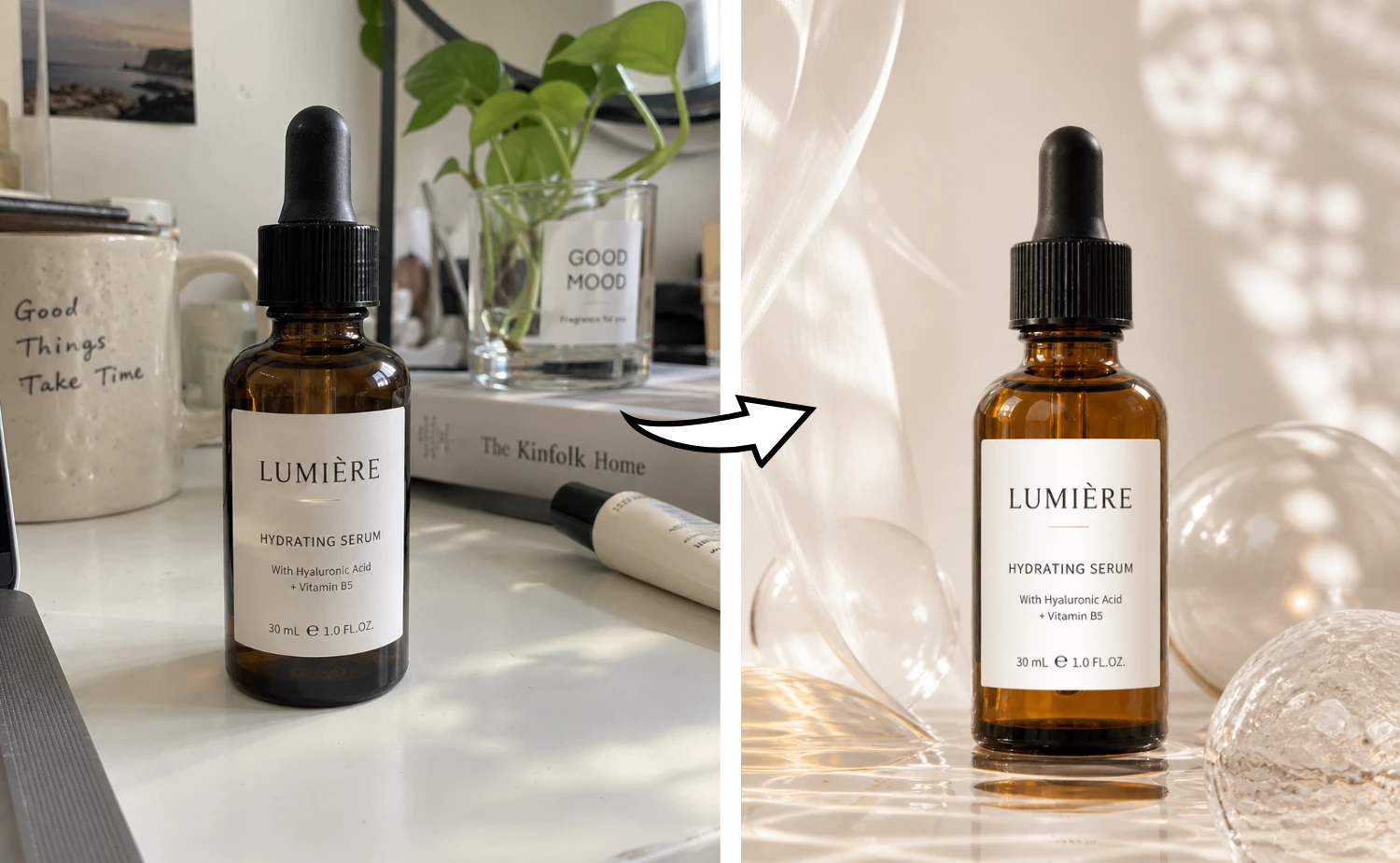
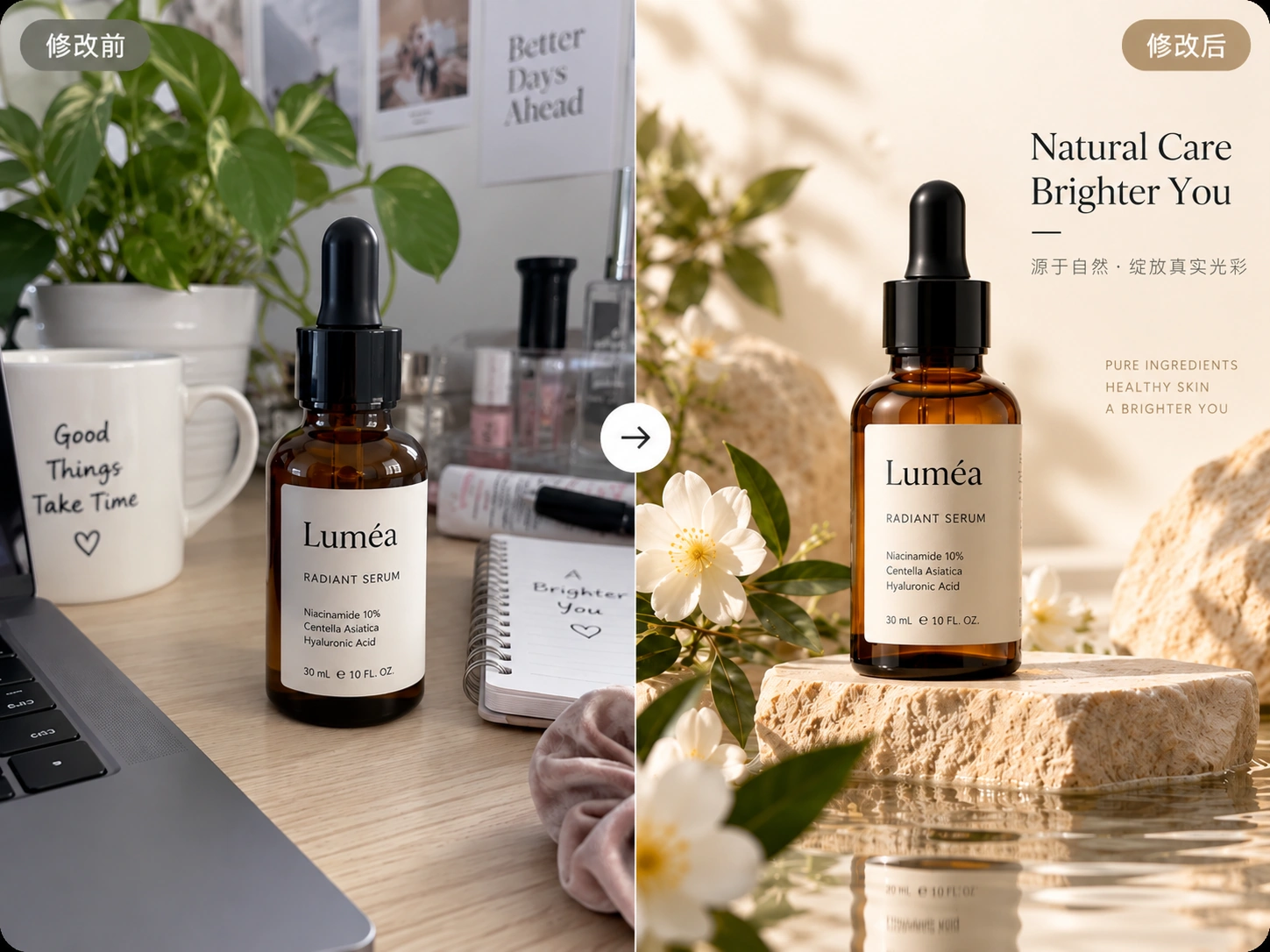
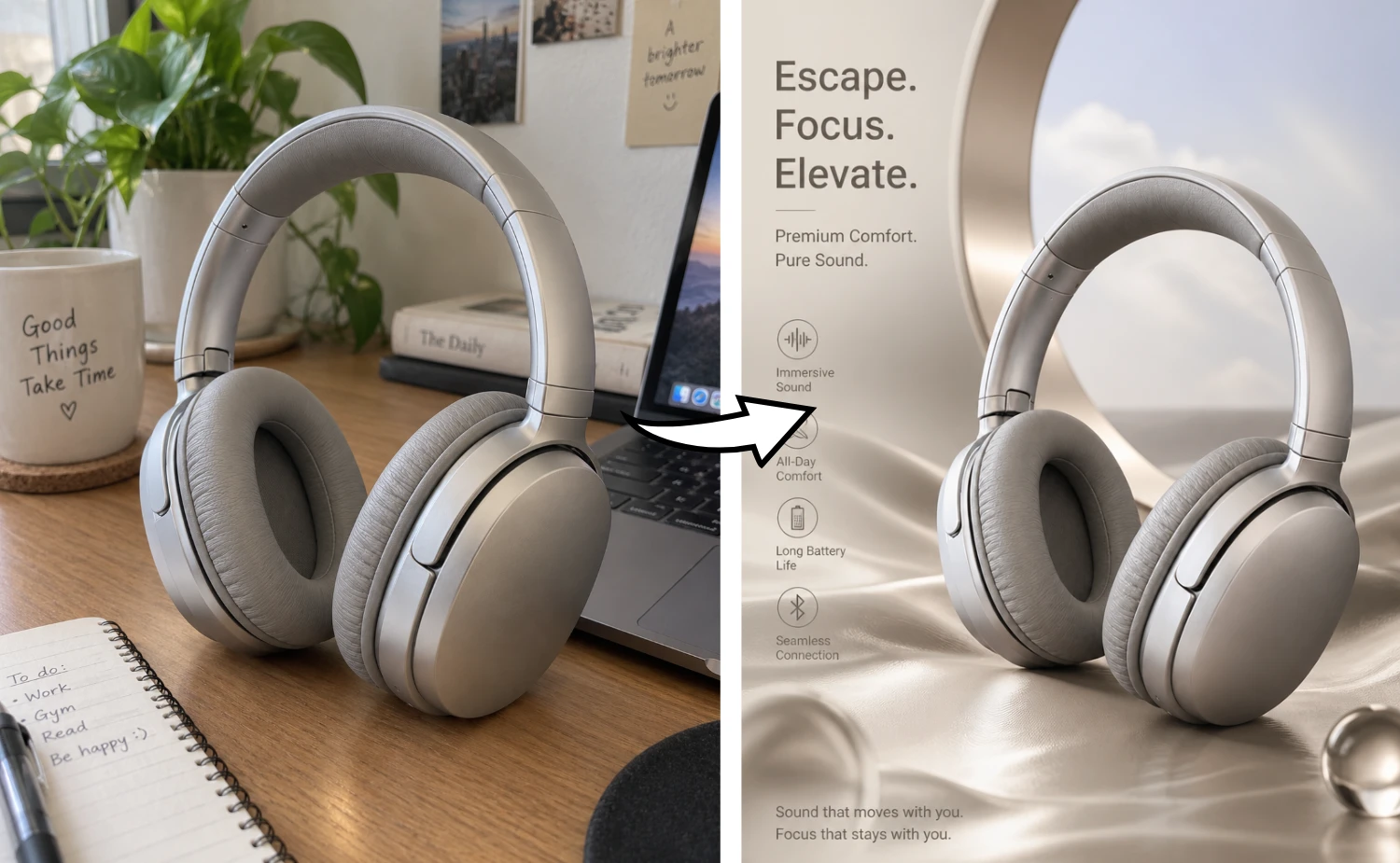
Product Photography beforeProduct Photography after

01

Product Photography

Turn a simple product reference into a controlled studio direction while keeping the object recognizable.

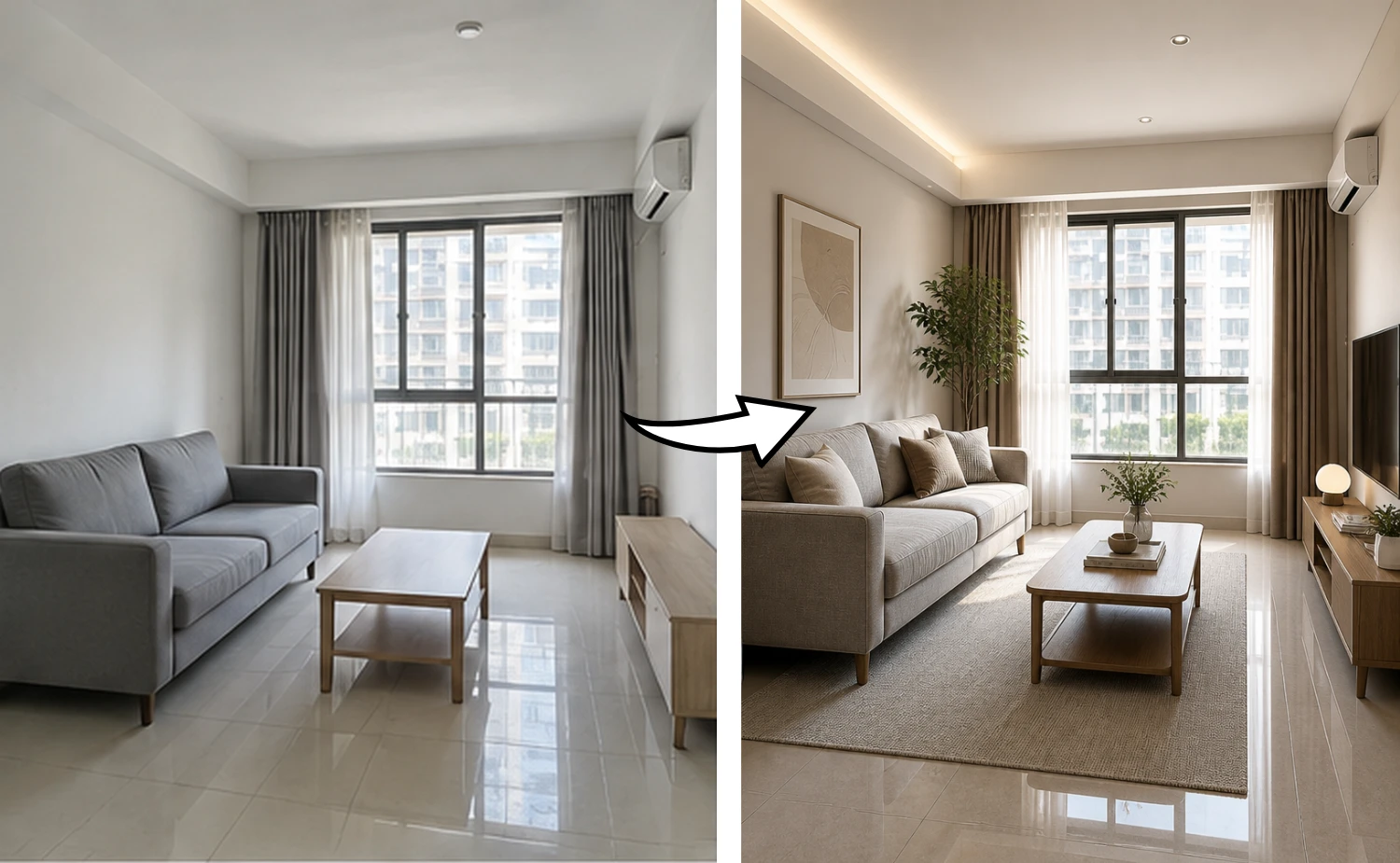
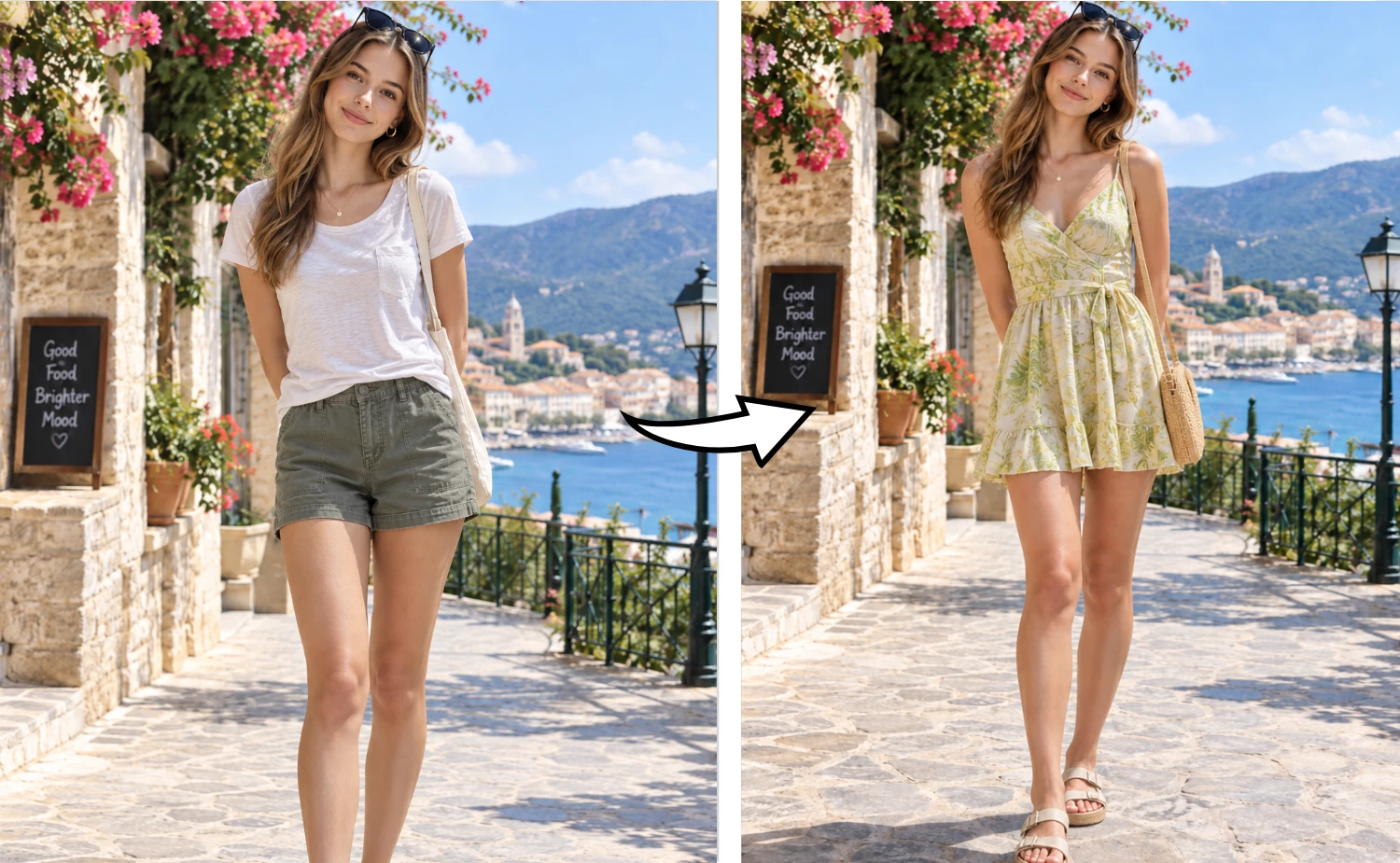
Marketing Creative beforeMarketing Creative after

02

Marketing Creative

Change the setting around an existing subject to explore a new campaign mood without rebuilding the whole image.

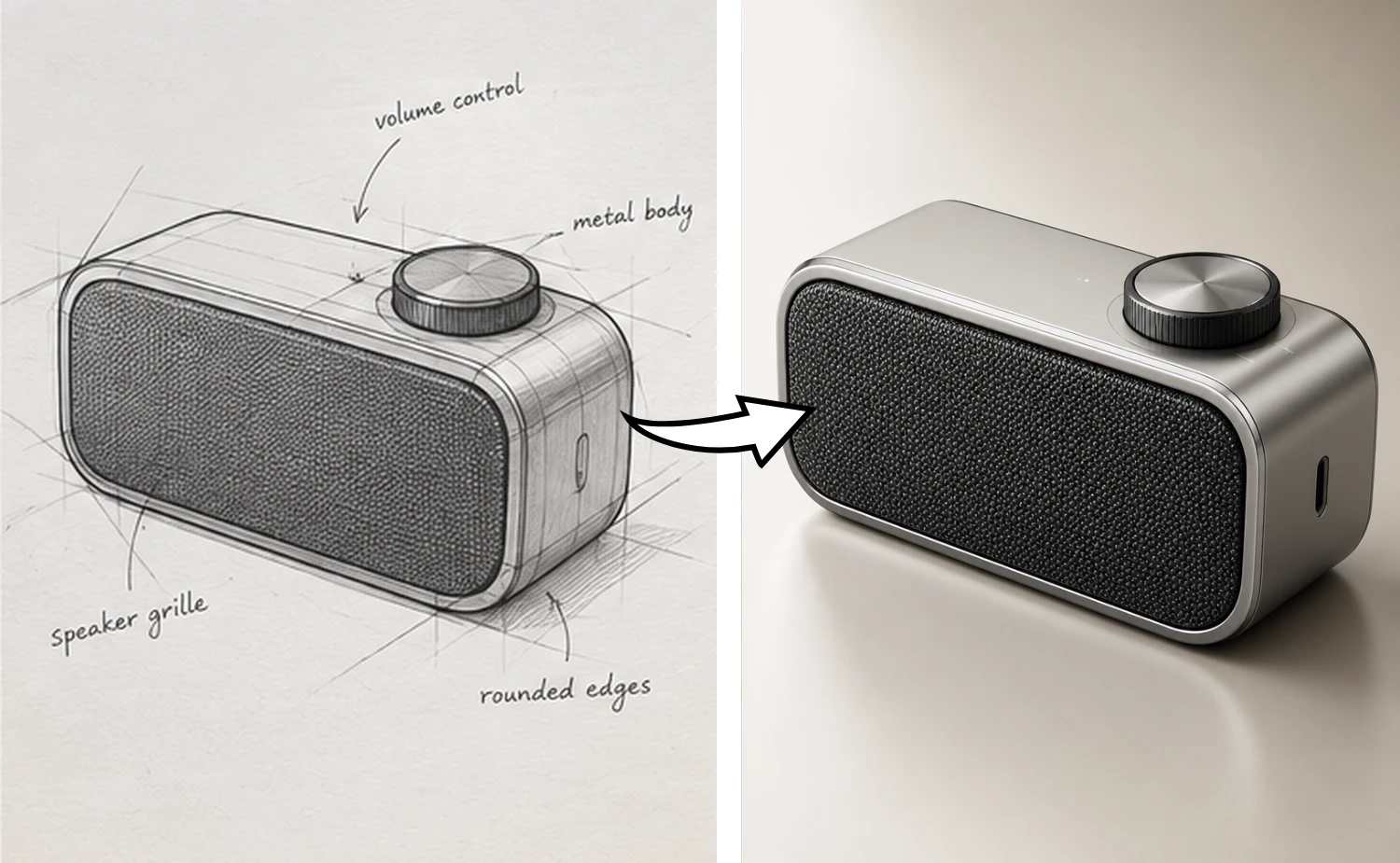
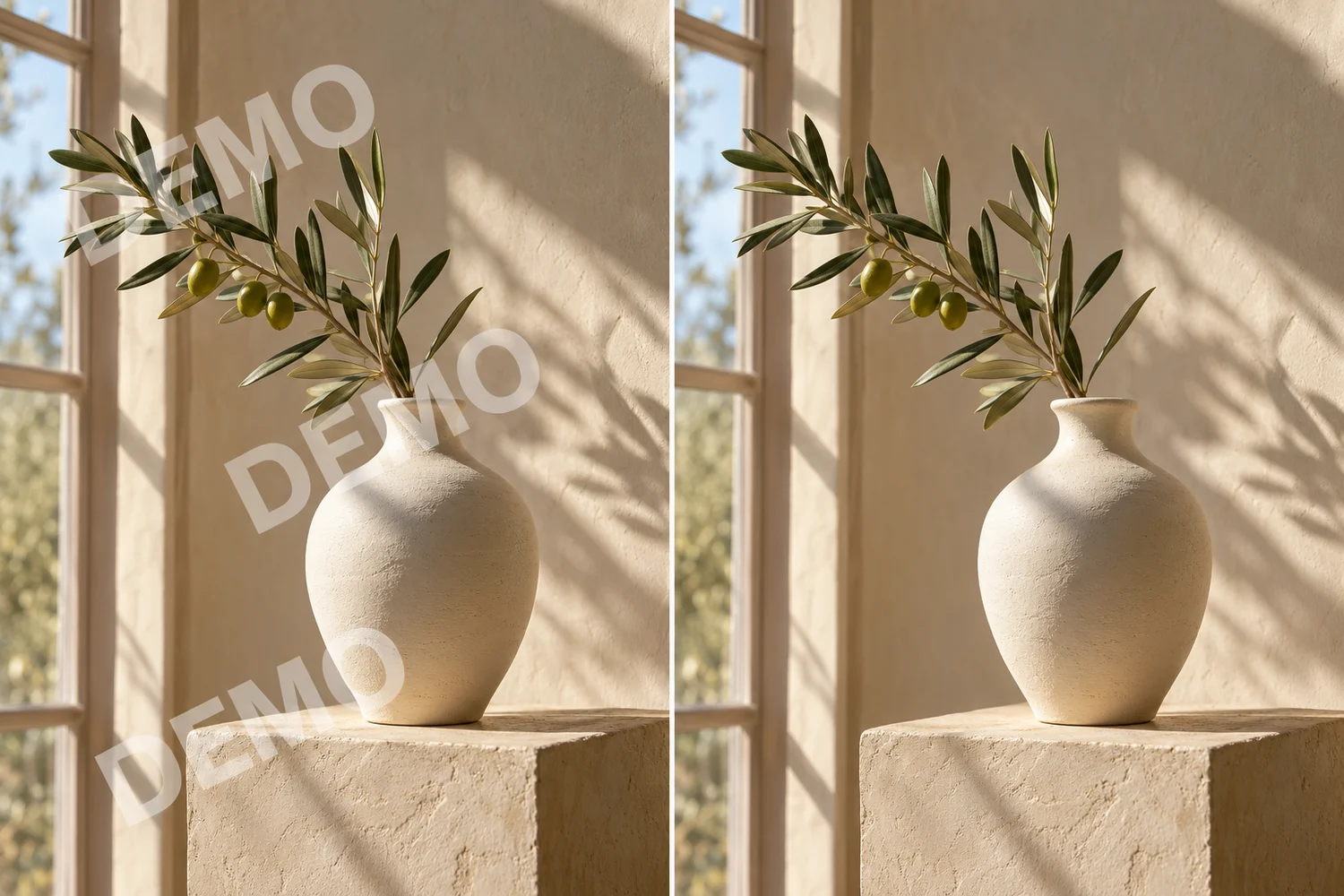
Poster Remix beforePoster Remix after

03

Poster Remix

Keep a poster layout and visual rhythm, then make a short, deliberate text adjustment.

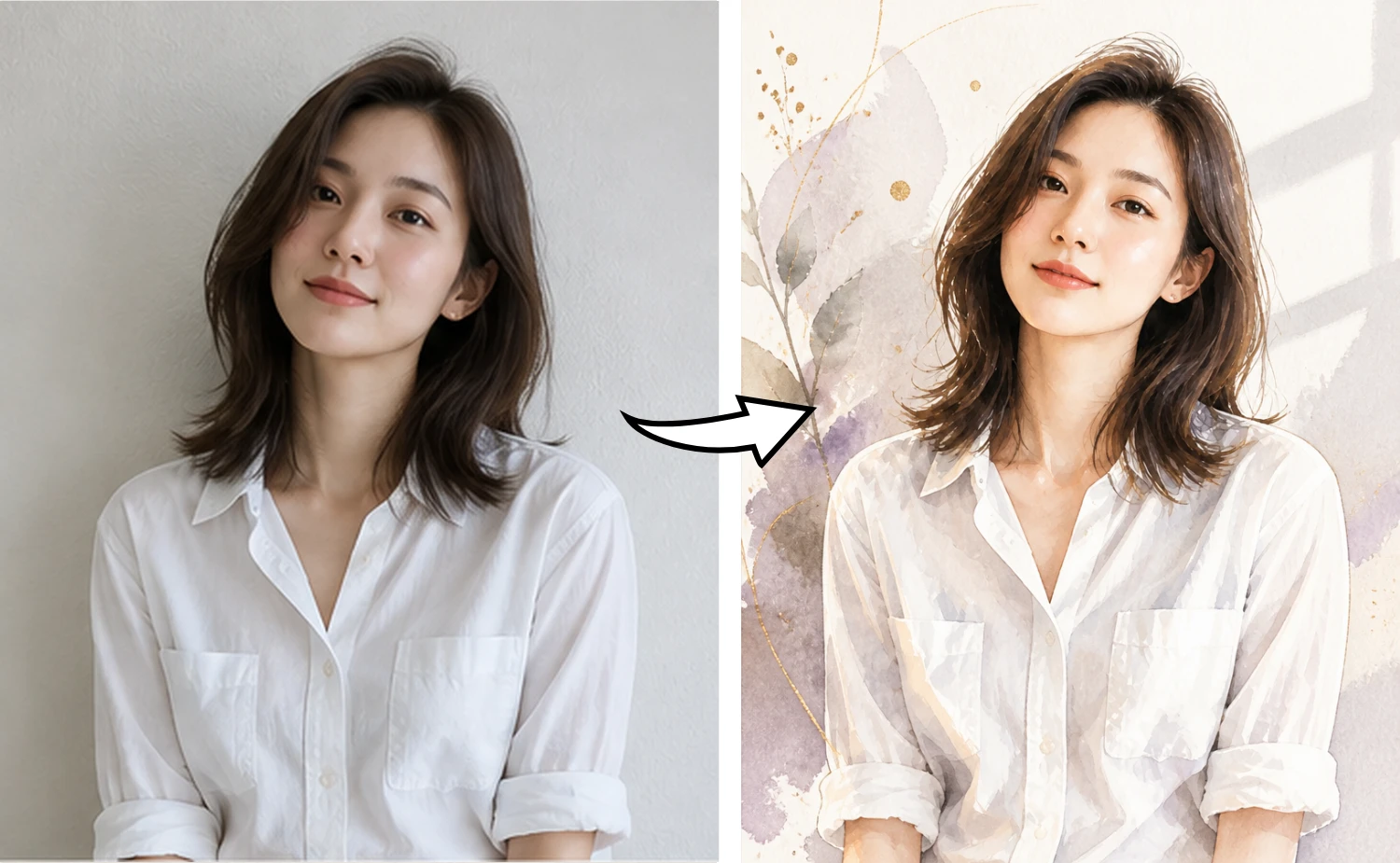
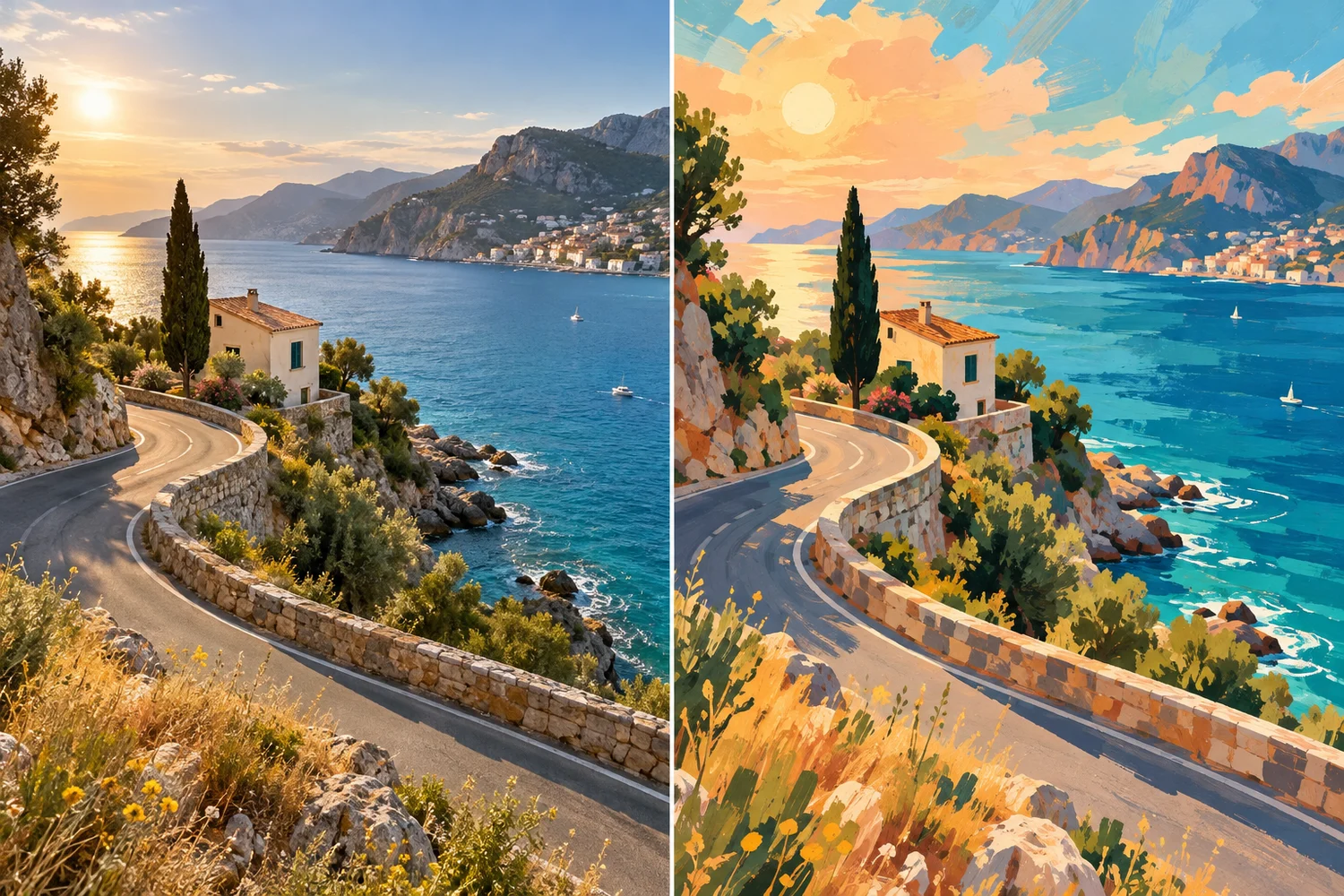
Creative Exploration beforeCreative Exploration after

04

Creative Exploration

Create a related direction from an image you already like, so iteration stays anchored instead of random.

Inspiration gallery

Click a result to bring its edit direction back to the workbench.

Soft controls, clear expectations

Keep the parts that matter.

Composition, Subject, Lighting, Style, and Color guide the prompt builder. They help the model understand your intent, but they do not promise pixel-level consistency. Small details can still drift.

Composition
Subject
Lighting
Style
Color

FAQ

Questions before your first edit

How does Image to Image AI work?

Upload one image, describe the change, and choose what should stay consistent. Designhint sends one reference image and your instruction through the existing GPT Image 2 generation flow.

Do I need special prompt syntax?

No. Describe the change in plain language. Short, specific instructions usually give the model a clearer edit target.

Can I preserve the composition?

Yes. Composition and Subject are selected by default. These are guidance controls rather than pixel-level guarantees, so small details may still drift.

Which image formats are supported?

Use one JPG, PNG, or WebP image up to 15MB. The page cleans metadata and scales the long edge to 1024px before submission.

How many credits does an edit use?

The Generate button shows the current credit cost. The MVP uses one GPT Image 2 image at 1K resolution and auto quality.

Are my reference images private?

Reference images are submitted only when you generate. Successful generations use the existing private generation history and media storage flow.

Can I use the result commercially?

Commercial use follows the model and account terms that apply to your Designhint generation. Review the current terms before publishing client work.

What are the model limitations?

The MVP does not include masks, local brush editing, multiple references, batch generation, strength controls, or a pixel-lock guarantee.

Start with an image you already like.

Make the next change deliberate, then keep iterating from the result.